Add a New User in ParcVu Online
Last updated 3 days ago
To use this function, the user will need the Allow Access System Maintenance user permission
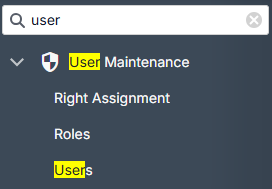
From the System Settings menu, under User Maintenance select Users
The System Settings menu in ParcVu Online is searchable - save time finding the setting you need by using key words!
The existing Users will be loaded
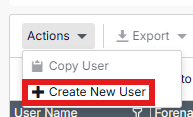
Using the Actions dropdown at the top of the grid, choose Create New User
Enter the user information;
Forename
Surname
Username - A unique username, only used to recognise the user in ParcVu Online (previously used to log in to ParcVu Desktop)
Password - Must be 7-12 characters long and contain a mixture of letters and numbers. You should not use special characters (?, #, *, & etc)
Confirm Password - Re-enter the new password
Force Password Reset - Tick this if you are entering a default password that you’d like the user to change when they first log in
Active Directory Username - This is only required if you use Active Directory Single Sign On
Email - This must be unique (you cannot have multiple users with the same email address) and will be used to log in to ParcVu Online. This must be a valid email address, as Multi Factor Authentication (MFA) codes will be sent to verify logins
Start Date - Defaults to the date you are creating the user, you can amend this if you choose
Head Office User - This is a legacy functionality not used in ParcVu Online. The field still exists for Desktop compatibility purposes
Sales Person - This must be checked if the user is a Salesperson who will be using Prospects etc
Commission Rate - If the User is a Salesperson, you can select the applicable Commission Rate from the list. This field is for information purposes only.
Adding Rights (Permissions)
Once you have the basic User profile information filled in, you can begin to define what access the User should have
In the Rights tab, tick any permissions the user should have - hover over any permission to see what it grants access to
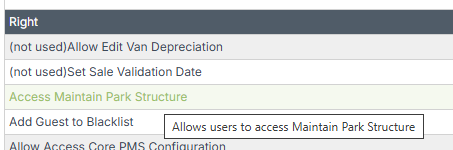
NEVER just include all permissions as a shortcut
There are permissions intended for integrations users, which explicitly prevent the user from being able to log in to ParcVu Online directly. Users given these permissions will not be able to log in to ParcVu
Adding Roles
Rather than granting individual permissions to each new user, you can create Roles - a preset collection of User Rights that can be applied to new and existing Users to simplify User management
From the Roles tab on the User, tick the Role you wish to apply
Users Parks
Any Parks the User should have access to must be ticked within this tab. Users will not be able to view data or perform actions at Parks they are not linked to
Linked Salespeople
This applies to Sales Person Users only - tick the associated Sales Person record(s) to ensure the User stats and sales are properly represented
Responsibilities
You can assign Responsibilities to specific Users for example the Maintenance Person responsibility for anyone who carries out jobs
Have an existing User who does the same role as your new User? Save time by using the Copy User function, rather than starting from scratch
This handy option copies all permissions to a blank User, so you only need to fill in the basics!
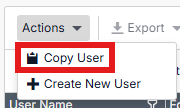
Please note: This option will only be shown when you have an existing User highlighted in the grid
Was this helpful?
Still need help? Share an idea